Every team starts with good intentions. A shared folder, a naming convention someone wrote on a sticky note, and a verbal agreement to “keep things organized.” Fast-forward six months and you have 4,000 files across three platforms, nobody can find the current logo, and someone just used the wrong brand colors in a client deck.
The problem is not that your team is disorganized. The problem is that file storage was never designed to manage brand assets. It was designed to store files. Those are two very different jobs.
This guide walks through a practical system for organizing brand assets that scales as your team and file library grow — whether you use a digital asset management tool or not.
Why File Storage Breaks Down
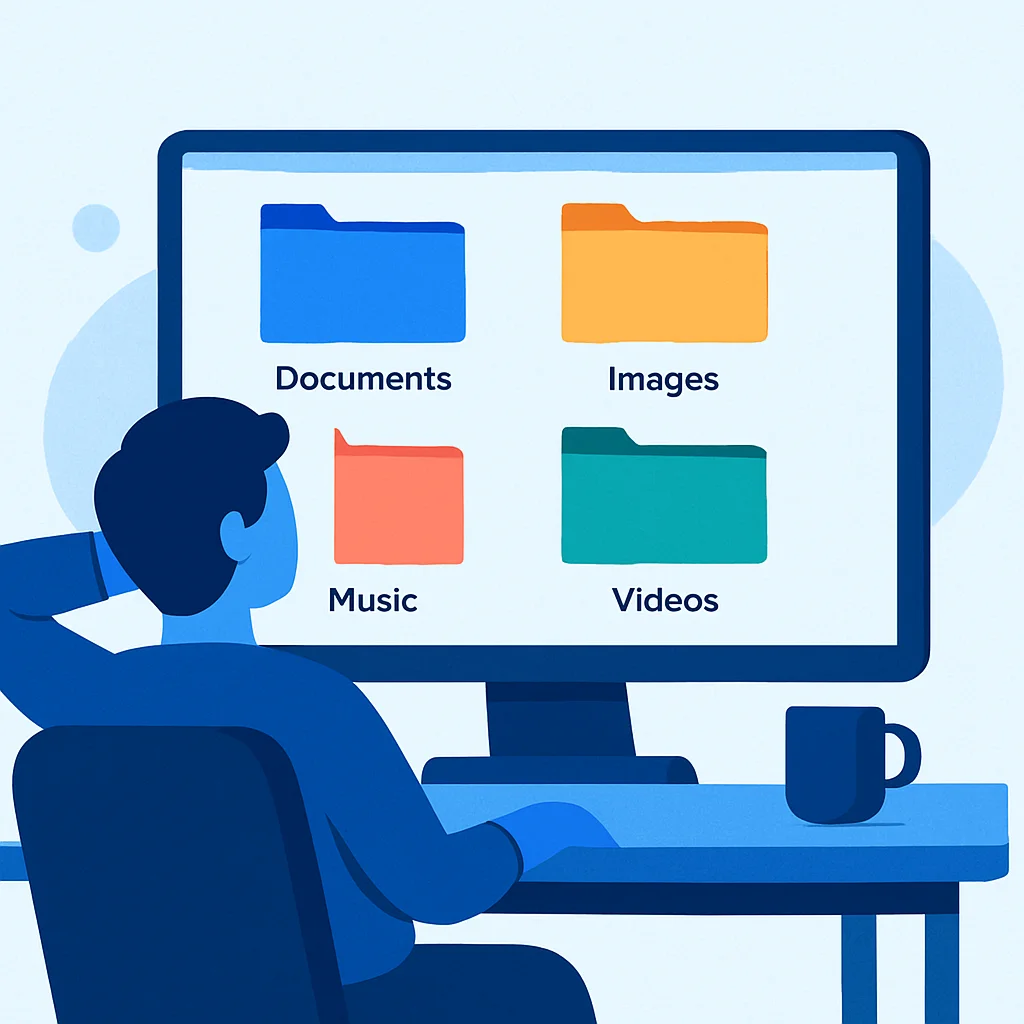
Before we fix the problem, it helps to understand why your current system stopped working. File storage tools — shared drives, cloud folders, even internal wikis — all share the same fundamental limitation: the only way to organize is by folder and filename.
That creates three predictable problems:
- Folder sprawl. Someone creates a “2024” folder. Someone else creates “Q1 2024.” A third person puts everything in “Marketing.” Within weeks, the same file lives in three places — or worse, three slightly different versions live in three places.
- Filename chaos. Without enforced naming conventions, you end up with
logo-final.png,logo-FINAL2.png,Logo_updated_USE_THIS.png, andlogo (1).png. Good luck figuring out which one is current. - No metadata. You cannot search by project, campaign, file type, or usage rights. You can only search by name. If the file is not named exactly what you are looking for, it is invisible.
The result: people spend more time searching for assets than using them. Or they give up searching and create new ones from scratch, which makes the problem worse.
Start with a Taxonomy, Not a Folder Tree
The first instinct is to build a better folder structure. Resist that instinct. Deeper folders do not solve the problem — they just bury files in more layers.
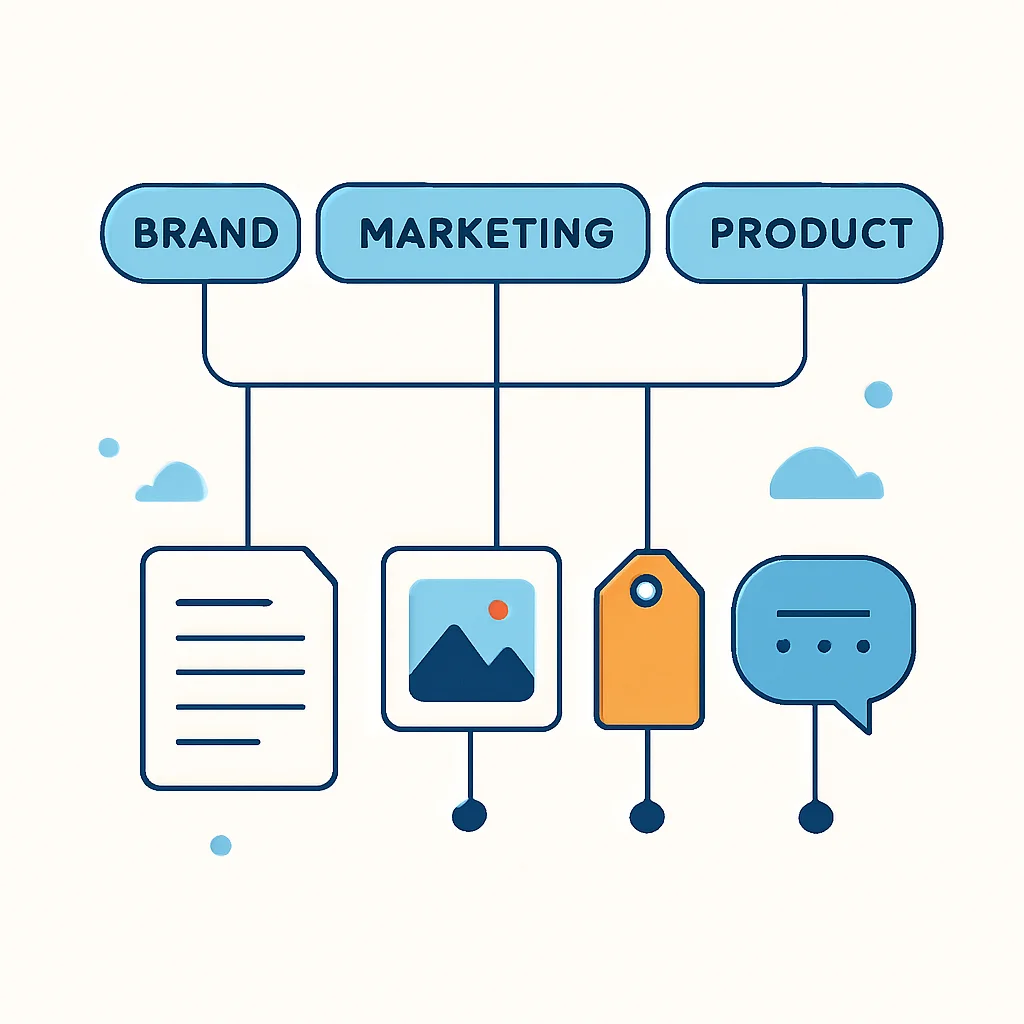
Instead, start with a taxonomy: a flat list of categories that describe what your assets are, not where they live.
A good starting taxonomy for most teams looks something like this:
- Brand Identity — logos, brand marks, favicons, app icons
- Brand Guidelines — style guides, color palettes, typography specs, tone of voice docs
- Marketing — campaign assets, ads, banners, email headers
- Social Media — post graphics, story templates, profile images, cover photos
- Product — product photography, screenshots, demo videos
- Sales — pitch decks, one-pagers, case studies, proposal templates
- Photography — team photos, headshots, event photos, lifestyle imagery
- Video — commercials, explainers, testimonials, raw footage
- Templates — presentation templates, social templates, document templates
- Archive — deprecated assets, old campaigns, historical materials
The key principle: categories should be broad enough that you only need 8–15 of them. If you have more than 15, you are over-categorizing. If someone has to think for more than two seconds about which category a file belongs in, the category is too narrow.
Name Files Like a Machine Will Read Them
Humans are bad at naming files consistently. Accept that and design a system that works anyway.
A good naming convention has three properties:
- It is predictable. Given the same asset, two different people should produce the same filename.
- It is searchable. The name contains enough information to find the file without browsing folders.
- It is sortable. Files in the same category sort in a logical order.
A practical format:
[category]-[descriptor]-[variant]-[date].[ext]
Examples:
logo-primary-dark-2026.svgsocial-instagram-story-template-spring2026.psdproduct-dashboard-screenshot-v3.pngphoto-team-headshot-jsmith.jpg
Rules to enforce:
- Lowercase everything
- Hyphens between words, never spaces or underscores
- No version words like “final” or “updated” — use version numbers if needed
- Date format is always YYYYMM or YYYYMMDD, never “spring” or “Q1”
Tag Everything (Even If It Feels Redundant)

Categories tell you what kind of asset something is. Tags tell you everything else: who is in it, what campaign it belongs to, what platform it is sized for, whether it has been approved, and anything else you might search for later.
Good tags are:
- Specific. “instagram-story” is useful. “social” is too broad (that is what the category is for).
- Consistent. Pick “headshot” or “portrait” and stick with one. Synonyms kill searchability.
- Additive. More tags are almost always better. A photo of your CEO at a conference could be tagged:
ceo,conference,keynote,2026,speaking,approved.
The objection people raise: “Tagging takes too long.” That was true five years ago. Today, AI auto-tagging can analyze an image and generate relevant tags in seconds. The time cost is near zero, and the search benefit is permanent.
Enforce One Version of the Truth
The single biggest source of brand inconsistency is not bad design — it is people using the wrong version of the right asset. The logo is fine. The problem is that someone grabbed the 2023 version from an old email instead of the current one from the shared drive.
Three rules that eliminate version confusion:
- One canonical location per asset. The current version lives in one place. Period. Old versions are archived, not renamed and left next to the current one.
- Stable links. When someone updates an asset, the URL or path should stay the same. Anyone who linked to the old version automatically gets the new one. This is the single most powerful feature of a proper DAM — and the one that file storage cannot replicate.
- Version history. Keep old versions accessible (you will need them for audits, legal, or “actually go back to the old one” requests) but clearly marked as previous. Never rely on filenames like
v2orfinalto indicate version status.
Control Access Without Controlling People

Not everyone needs access to everything. But heavy-handed permissions slow teams down and create bottlenecks where one person becomes the gatekeeper for every asset request.
A practical access model:
- Admins can upload, edit metadata, delete, and manage users. This is your brand manager or creative director.
- Contributors can upload and edit their own assets. Designers, photographers, and content creators live here.
- Viewers can browse and download approved assets. This is everyone else — sales, support, partners, agencies.
The key insight: most people only need to find and download the right asset. They do not need upload or edit access. Give them a clean, searchable library of approved assets and they will stop bothering the design team with “can you send me the logo?” requests.
Build an Approval Gate
Without an approval step, every uploaded file is implicitly “ready to use.” That means the rough draft your designer uploaded for internal feedback is sitting right next to the final approved version, and there is nothing stopping someone from grabbing the wrong one.
A simple approval workflow fixes this:
- Contributor uploads an asset → status is Draft
- Contributor marks it ready for review → status is Pending
- Admin reviews and approves (or sends it back with notes) → status is Approved or Rejected
- Only approved assets are visible to viewers
This does not add bureaucracy. It adds clarity. Designers know their work-in-progress will not get used prematurely. Marketers know everything in the approved library is safe to use. Nobody has to ask “is this the right version?”
Audit and Clean Up Quarterly
Even the best system accumulates clutter over time. Schedule a quarterly review:
- Archive expired assets — last year’s holiday campaign graphics, deprecated product screenshots, old event photos
- Update metadata — re-tag assets that were rushed in without proper tags
- Check for orphans — assets with no tags, no category, or no views in 6+ months
- Verify brand accuracy — spot-check that the current logo, colors, and templates are actually current
- Review access — remove departed team members, update roles for people who changed positions
A 30-minute quarterly cleanup prevents the slow decay that turns an organized library back into a messy shared drive.
The Checklist: Your Brand Asset Organization System
Here is the complete system in checklist form:
- Define 8–15 asset categories (not folders — flat categories)
- Establish a naming convention and document it in one sentence
- Tag every asset with at least 3–5 relevant tags (use AI auto-tagging to speed this up)
- Designate one canonical location per asset — no duplicates
- Use stable CDN links so URLs survive version updates
- Set up three access levels: admin, contributor, viewer
- Require approval before assets are visible to viewers
- Schedule a 30-minute quarterly cleanup
How Asset Locker Makes This Easy
Asset Locker is built around the principles in this guide. Categories, tags, naming conventions, approval workflows, stable CDN links, and role-based access are all built in — not bolted on as afterthoughts.
AI auto-tagging means new uploads are tagged and searchable within seconds. Version management means updating an asset does not break any links. And the approval workflow ensures only reviewed, approved assets reach your broader team.
The result: your team spends less time looking for assets and more time using them.
Key Takeaways
- Folders are not the answer. Flat categories plus tags beat nested folder trees every time.
- Naming conventions matter. Predictable filenames make search work even without metadata.
- Tag generously. AI makes tagging nearly free. Every tag is a future search result.
- One version of truth. Stable links and version history eliminate “which one is current?”
- Access control is about clarity, not restriction. Most people just need to find and download approved assets.
- Approval workflows protect brand consistency without slowing teams down.
- Audit quarterly. Thirty minutes prevents six months of gradual decay.